
Introducing Image Optimization with Flowdrive
Learn how Flowdrive simplifies image optimization for Webflow with compression, format conversion, version control, and fast previews.
June 30, 2026 · Feature Highlights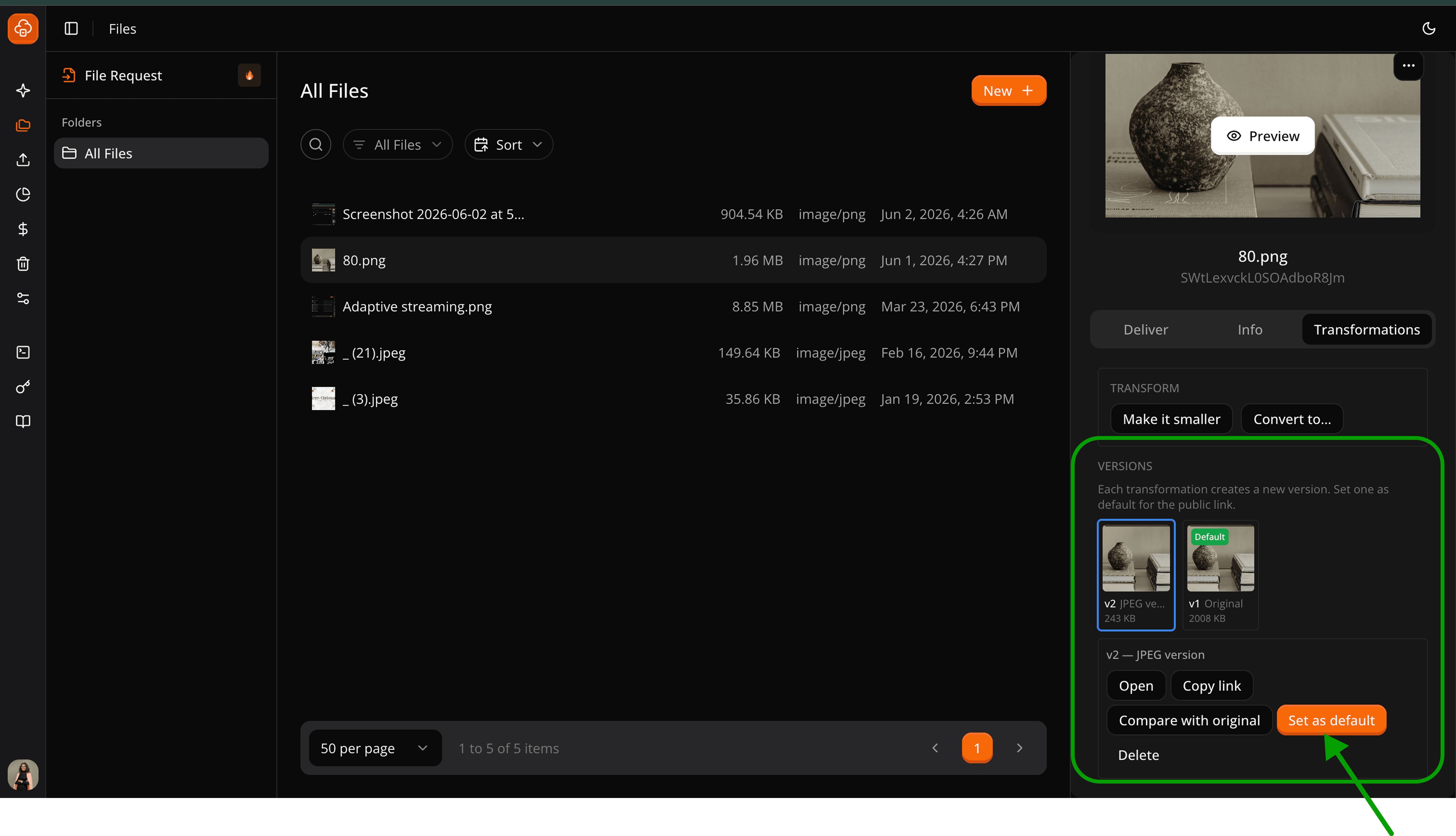
Images account for almost half of a web page's weight. The optimization workflow most agencies use goes like this: they download the image, open Squoosh or TinyPNG in the browser, compress it, re-download, rename the file, re-upload to wherever it lives, and update the URL in Webflow. They repeat this for every image that needs updating, or when the client sends a revised version, and also when you need to test a different compression level or format.
This works, but it is slow and adds friction to a task that should be simple. Flowdrive's new Image Transformation feature makes this whole process a lot easier for you. As soon as you have uploaded your image to your Flowdrive storage, you can access the Transformations feature in the file panel. You can then preview the changes, download the new version, and copy and paste the new image URL. All transformations are saved as new versions of the original file.
What Image Transformation Gives You
There are three distinct capabilities in Flowdrive's Image Transformation feature, and they work together as a single workflow rather than separate tools.
Compression
Reduce the file size of your images without sacrificing visible quality. The images processed by Flowdrive’s image processing are optimized to remove redundant data in an image file, which result is a meaningfully smaller file that renders the same as the original at normal viewing sizes.
For agencies managing large media libraries the impact of reducing image file sizes can be significant. Not only will reducing the file size of images lead to lower bandwidth for every page on your website, it will also enable images to be delivered more quickly from the CDN, resulting in better LCP scores and generally less bandwidth being used up against your Webflow hosting bandwidth allocation for assets hosted natively in Webflow.
Format Conversion
Convert any image in your Flowdrive library to WebP, AVIF, or JPEG. You get to see the result, compare it to the original side by side, and decide whether to save it before any change is committed, all inside the same dashboard
Version Management
Every transformation, whether a compression pass, a format conversion, or both, is saved as a new version alongside your original. The original file is never overwritten.
You can have multiple versions of the same image (the original JPEG, a compressed JPEG, a WebP conversion, an AVIF conversion) all stored under one file entry, each with its own URL.
How to Transform an Image in Flowdrive
The image transformations in Flowdrive can be carried out within the File Library where all your files are stored. Here is a step by step guide to how you can transform an image within Flowdrive.
- Select your image
Start by selecting an image in your Flowdrive file library. This can be any type of image (JPG, PNG, WebP, GIF, etc.)
- Open the Transformations tab
Click the Transformations tab inside the file panel. This is where all transformation options are available, like the compression settings and format conversion targets.
- Choose your transformation
Pick what you want to do: compress the image to reduce file size, or convert it to a different format (WebP, AVIF, or JPEG).
- Preview the result
A hover panel would appear showing what the transformed image will look like. Click the Preview button before committing. This step is the key difference from a traditional compression tool, you see exactly what you are saving before it is saved
- Compare and save
A side-by-side comparison shows your original and the transformed image. If you are satisfied, click 'Save as new version'. Your original is preserved untouched. The transformation becomes a new versioned file.
- Manage your versions
All saved versions appear in one place inside the file panel. Set any version as the default, switch between them freely, or copy the direct URL for any version to use in Webflow or anywhere else on the web.
Image transformation is live. Try it now.
Open any image in your Flowdrive library and click the Transformations tab to get started. Compress, convert, and preview all versions all in one place.
Start your free trial at tryflowdrive.com
Start hosting for free
Unlimited file hosting for Webflow projects.